
For many readers, the PDF is the report. Board packs, investor and client reports, and scheduled sends all reach people as a PDF. Evidence includes components and options for developing reports that are effective both on the web and in PDF.

Export Your First PDF

Studio only — part of Evidence Studio, our hosted platform.
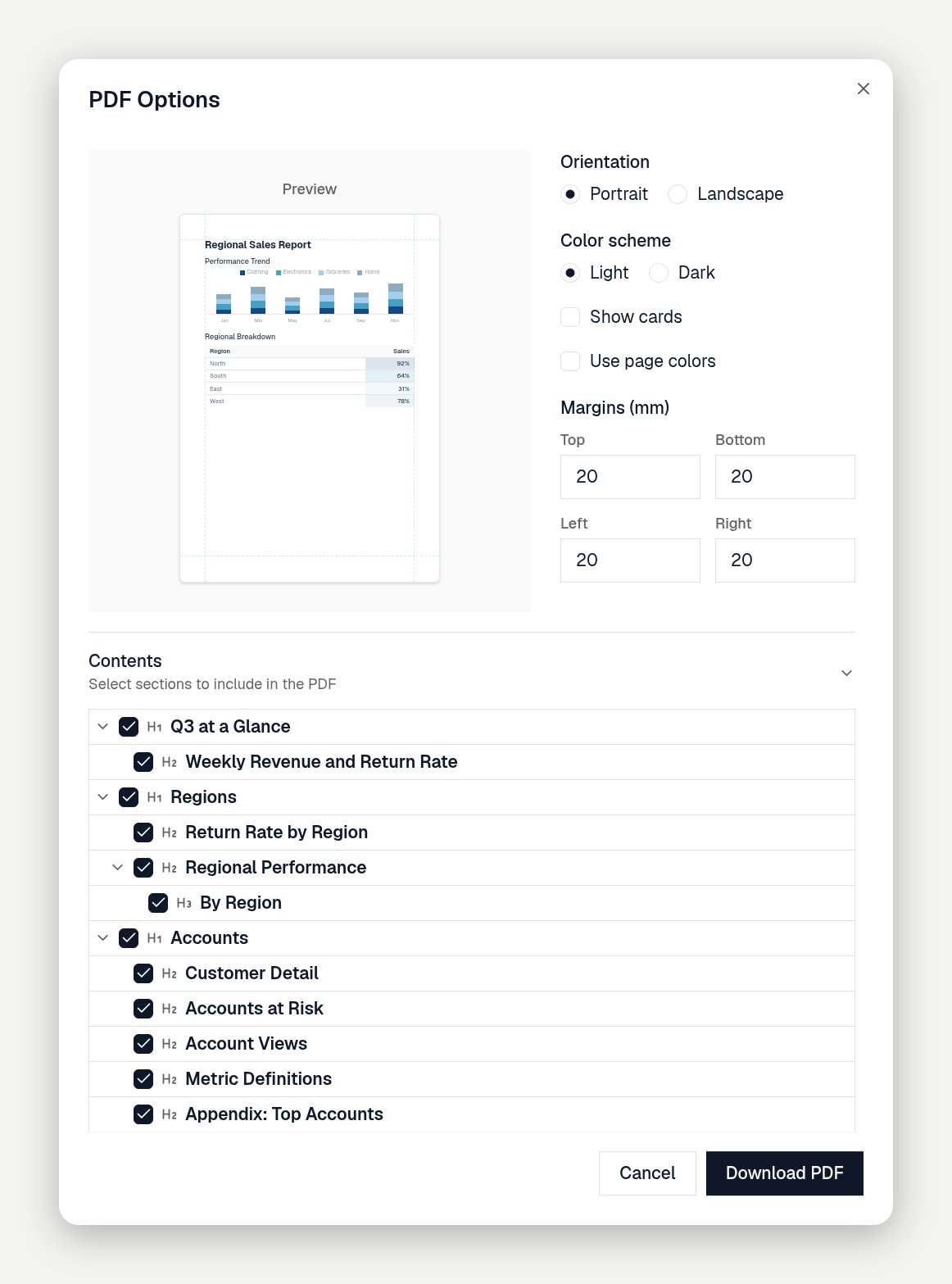
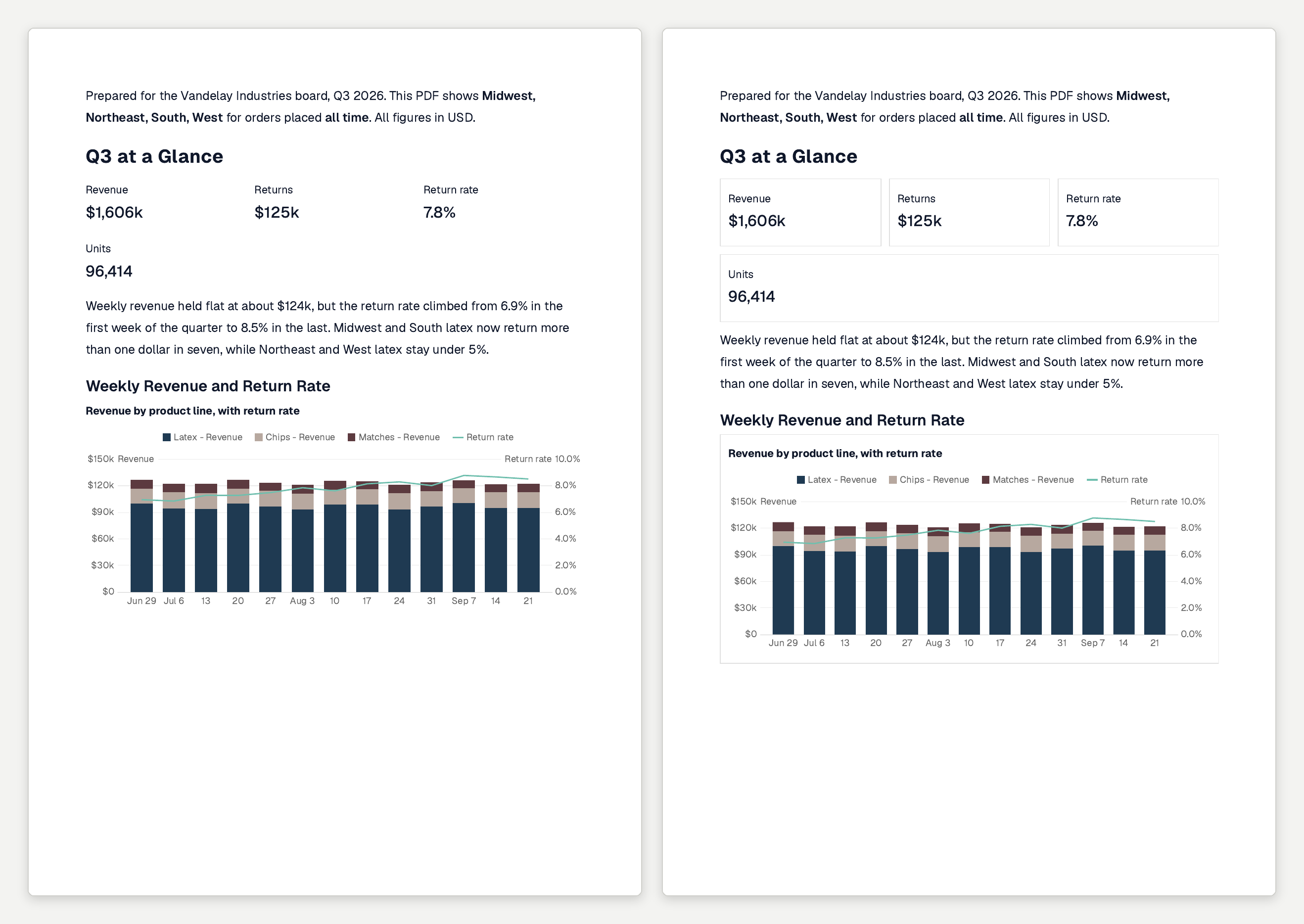
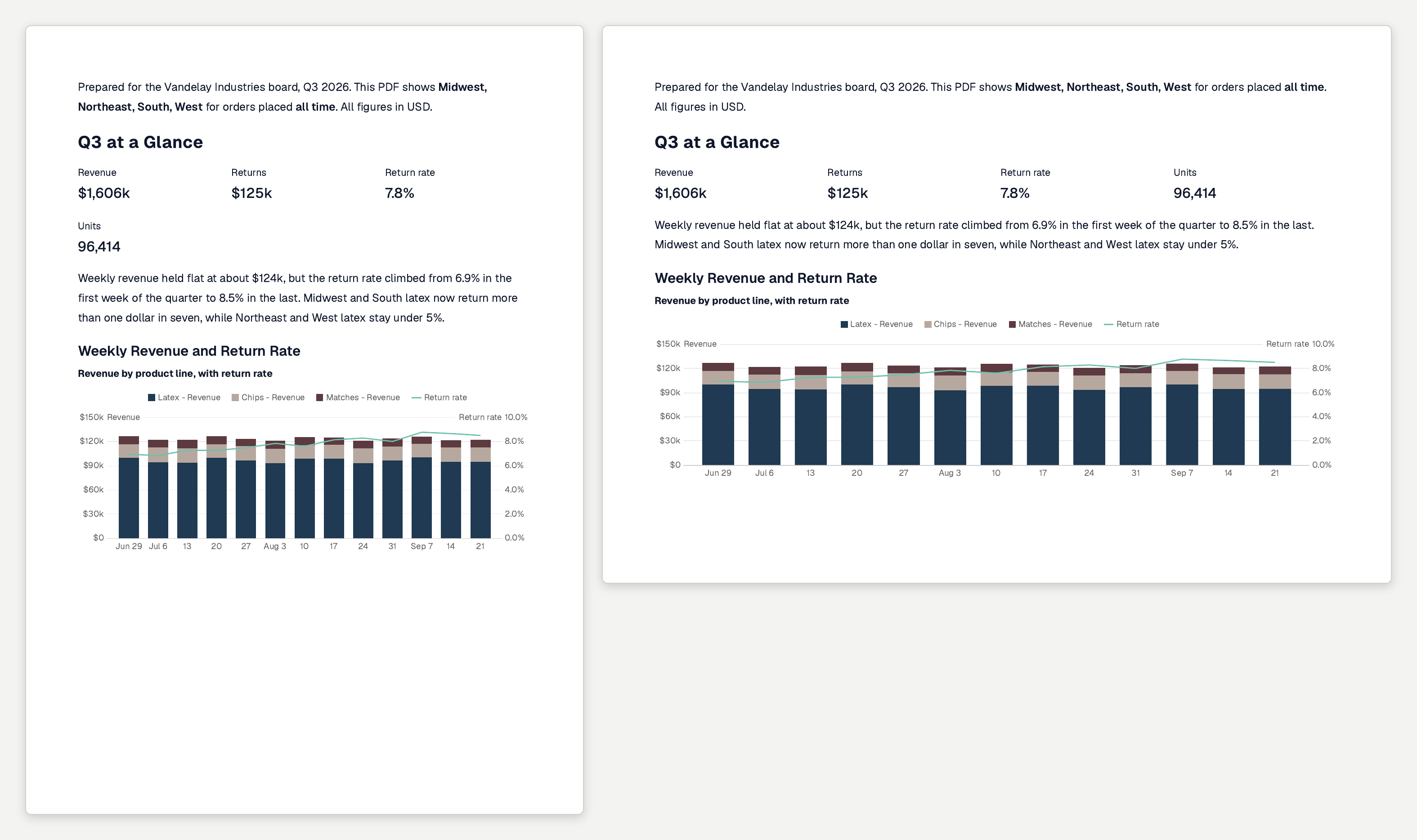
Open the page menu and choose Download PDF, or press Cmd+P / Ctrl+P on a published page. The PDF Options dialog, with a preview on the left and the settings on the right Use landscape for wide tables and charts. The same page exported in portrait and landscape The same page with Show cards off and on Light mode is usually best for printed PDFs.
Keep Content on the Same Page

Wrap related content in print_group so it stays together — a heading with its chart, or a chart with its table.
Use print_group hide=true to leave a block out of the PDF entirely.

Start a New Page

Add page_break where the next page should begin.

Hide Filters and Controls

Wrap inputs in hidden_in_print. Otherwise they print as unusable controls.

Add Content for PDF Readers

Use only_in_print for text that only PDF readers need.

Adapt Filters for Print

Filters aren’t interactive in print, but they affect the content that’s included. Hiding filters and replacing them with a sentence describing the filter state can help a PDF remain clear.
A multi-select prints as a comma-separated list. To show every filter value in one PDF instead of a single chart with an input, use a repeat. On screen, readers see the interactive dropdown and chart. In the PDF, they see one chart per value.

Tabs

Tabs print every tab in sequence, each with its title as a heading.